LTARE Code Style Guide
R Code Style Guide
This style guide adapts the Tidyverse Style Guide and incorporates best practices from R for Data Science (2e) (R4DS), Data Management in Large-Scale Education Research, and other resources.
All WaSHI staff who code in R should thoroughly read and consistently implement this style guide.
Using consistent project structures, naming conventions, script structures, and code style will improve code readability, analysis reproducibility, and ease of collaboration.
Good coding style is like correct punctuation: you can manage without it, butitsuremakesthingseasiertoread…
All style guides are fundamentally opinionated. Some decisions genuinely do make code easier to use (especially matching indenting to programming structure), but many decisions are arbitrary. The most important thing about a style guide is that it provides consistency, making code easier to write because you need to make fewer decisions.
- Hadley Wickham in the Tidyverse Style Guide
Projects
Keep all files associated with a given project (input data, R scripts, analytical results, figures, reports) together in one directory. RStudio has built-in support for this through projects, which bundle all files in a portable, self-contained folder that can be moved around on your computer or on to other collaborators’ computers without breaking file paths.
Create a GitHub repository and commit the project folder for version control as discussed in the Version control with Git and GitHub section of the Storage & Version Control menu. If not in a GitHub repository, the folder must be copied onto the shared drive.
Learn more about projects in the Workflow: scripts and projects chapter of R4DS, in Jenny Bryan’s article Project-oriented workflow, and Shannon Pileggi’s workshop slides.
Project Folder Structure
A consistent and logical folder structure makes it easier for you (especially future you) and collaborators to make sense of the files and work you’ve done. Well documented projects also make it easier to resume a project after time away.
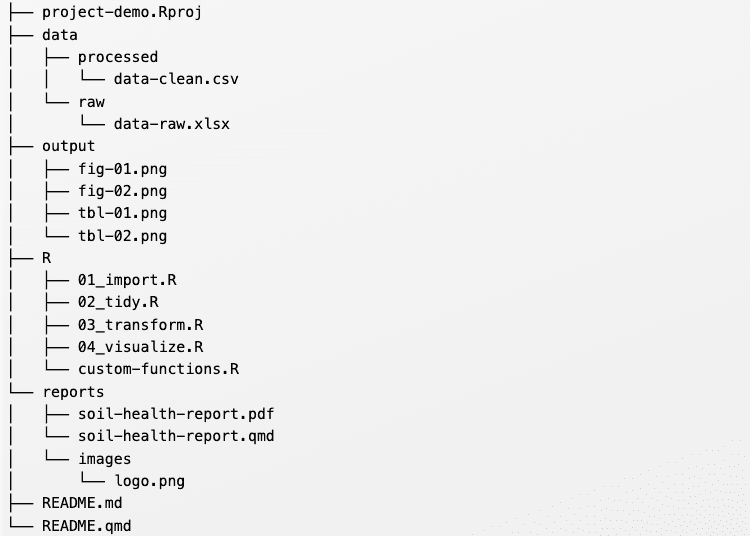
The below structure works most of the time and should be used as a starting point. However, different projects have different needs, so add and remove subfolders as needed.
- root: top-level project folder containing the
.Rprojfile - data: contains raw and processed data files in subfolders. Raw data should be made read-only and not changed in any way. Review Section 5.2 for how to make a file read-only
- output: outputs from R scripts such as figures or tables
- R: R scripts containing data processing or function definitions
- reports: Quarto or RMarkdown files with the resulting reports
- README: markdown file (can be generated from Quarto or RMarkdown) explaining the project
R packages, such as {washi} and {soils}, contain additional subfolders and files:
- inst: additional files to be included with package installation such as
CITATION, fonts, and Quarto templates. - man:
.Rd(“R documentation”) files for each function generated from {roxygen2}. - vignettes: long-form guides that go beyond function documentation and demonstrate a workflow to solve a particular problem
- tests: test files, usually using {testthat}
- pkgdown and docs: files and output if using {pkgdown} to build a website for the package
- DESCRIPTION: file package metadata (authors, current version, dependencies)
- LICENSE: file describing the package usage agreement
- NAMESPACE: file generated by {roxygen2} listing functions imported from other packages and functions exported from your package
- NEWS.md: file documenting user-facing changes
Learn more about other R package components in R Packages (2e).
Absolute vs relative paths
Directories and folders are used interchangeably here. If you’re interested in the technical differences, directories contain folders and files to organize data at different levels while folders hold subfolders and files in a single level.
❌ Absolute paths start with the root directory and provide the full path to a specific file or folder like C:\\Users\\username\\Documents\\R\\projects\\project-demo\\data\\processed.1 Run getwd() to see where the current working directory is and setwd() to set it a specific folder. However, a working directory set to an absolute folder path will break the code if the folder is moved or renamed
✅ Instead, always use relative paths, which are relative to the working directory (i.e. the project’s home) like data/processed/data-clean.csv. When working in an RStudio project, the default working directory is the root project directory (i.e., where the .Rproj file is).
{here} Package
In combination with R projects, the {here} package builds relative file paths. This is especially important when rendering Quarto files because the default working directory is where the .qmd file lives. Using the above example project structure, running read.csv("data/processed/data-clean.csv") in soil-health-report.qmd errors because it looks for a data subfolder in the reports folder. Instead, use here to build a relative path from the project root with read.csv(here::here("data", "processed", "data-clean.csv")). This takes care of the backslashes or forward slashes so the relative path works with any operating system.
Naming Conventions
“There are only two hard things in Computer Science: cache invalidation and naming things.”
— Phil Karlton
Based on this quote, Indrajeet Patil developed a slide deck with detailed language-agnostic advice on naming things in computer science.
R code specific naming conventions are listed below. Python and other programming languages have different conventions.
Project folder, .RProj and GitHub repository
Example: washi-dmp and washi-dmp.RProj.
Files
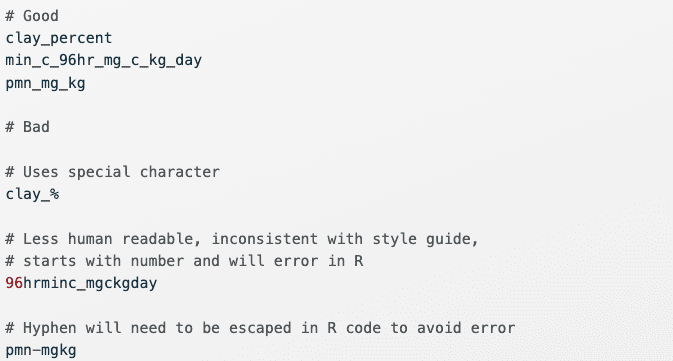
Be concise and descriptive. Avoid using special characters. Use kebab-case with underscores to separate different metadata groups (e.g., date_good-name).
Examples: 2024_producer-report.qmd, tables.R, create-soils.R.
If files should be run in a particular order, prefix them with numbers. Left pad with zeros if there may be more than 10 files.

Variables, objects, and functions
Variables are column headers in spreadsheets (that become column names in R dataframes), objects are data structures in R and ArcGIS (vectors, lists, dataframes, fields, tables), and functions are self-contained modules of code that accomplish a specific task.
Objects and functions
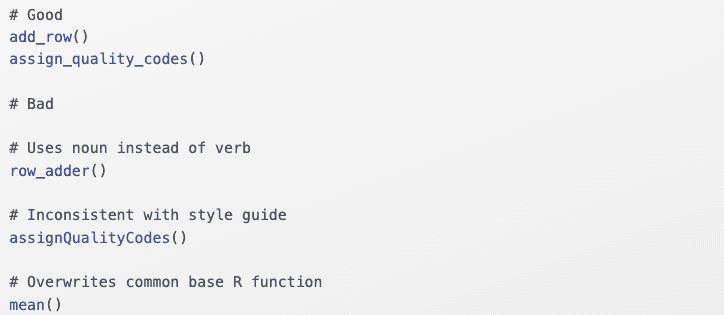
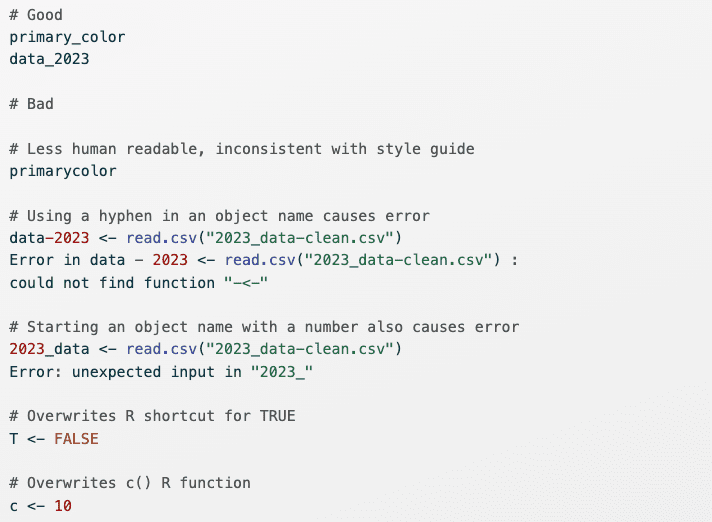
Objects names should be nouns, while function names should be verbs (Wickham 2022). Use lowercase letters, numbers, and underscores. Do not put a number as the first character of the name. Do not use hyphens. Do not use names of common functions or variables.
Object Examples
Function Examples